Drive your route with Apple Maps or Waze
Last reviewed: November 11, 2026
The best stop order only helps if it makes it into the navigation app. Many drivers have their go-to app: Apple Maps on the iPhone, Waze for its traffic reports, Google Maps. With the driver link, any of them works.
Try it now: free up to 25 stops, no sign-up →
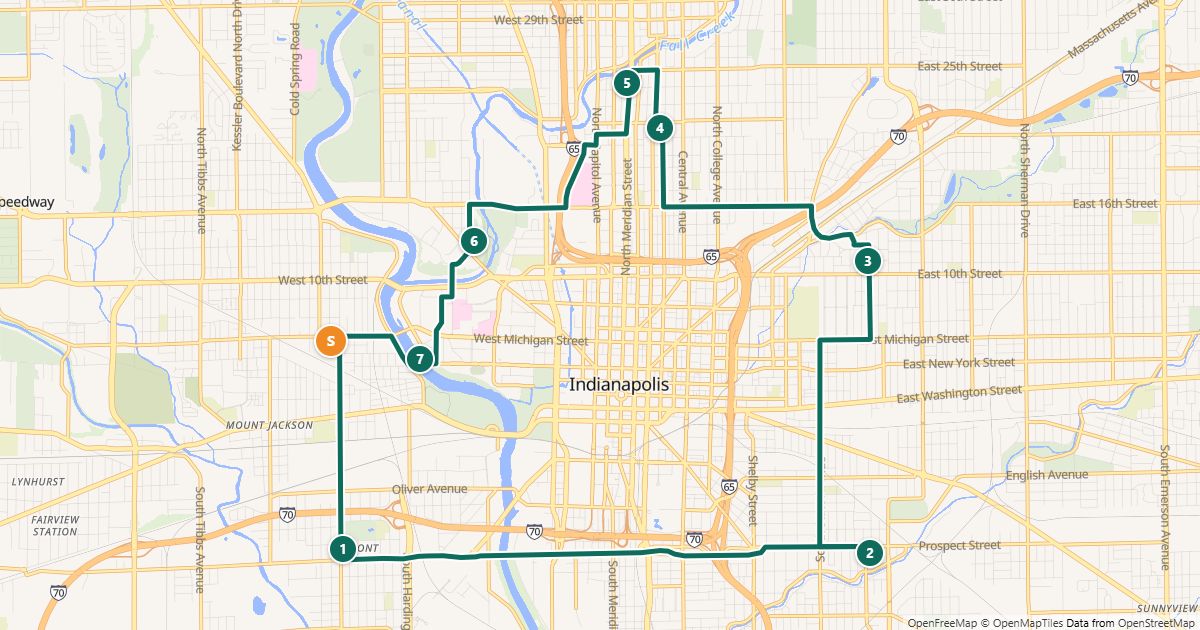
Stop by stop instead of the whole route
According to its help center, Waze adds at most one stop on the way to a destination. For routes with many addresses, the easiest way is to always navigate to the next stop only.
That is exactly how the driver link works: every stop has buttons for Google Maps, Apple Maps and Waze. One tap starts navigation to that stop in the chosen app.
How it works
- Plan and optimize the route in the planner.
- Under “Driver link”, click “Save and create link” and choose how long the link stays valid.
- Send the link to the driver by text or email – or open it on your own phone.
- On the road: tap “Apple Maps” or “Waze” at the next stop, drive there, check the stop off.
Good to know
- Drivers need no account and no app – just a browser.
- You see check marks and reports (“nobody home”, “no access” …) in the planner – without a time and without a location.
- The apps route each leg with their own live traffic – the order comes from your plan.
Free for routes with up to 25 stops, nothing to install.
Plan a route nowQuestions
- What does the navigation app see of my route?
- When you tap a stop, the app receives that stop’s coordinates – no names or notes.
- Does this work with Google Maps too?
- Yes. For Google Maps there is also “Whole route in Google Maps”, which splits the route into sections of at most 10 points.
Sources
More guides
- How to use Google Maps with more than 10 stops
- Import an address list from Excel or CSV
- Share a route with your drivers
- The best stop order: round trip, fixed destination or open end
- How much time does an optimized route save?
- Calculate the mileage cost of a route
- Clean up addresses for route planning
- Paste addresses from an email or document
- Split stops across several drivers or days
- Customer addresses and privacy
- Plan your daily route faster
- Google Maps vs. a route planner: when to use which
- Free route planner for many stops: the checklist
- Route planner without an app
- Plan a route with multiple stops
- Plan routes by bike or on foot
- Breaks in route planning