Split stops across several drivers or days
Last reviewed: November 15, 2026
Past a certain number of stops, it no longer fits into one shift. Then it pays to split by area first and only then optimize each route on its own.
Try it now: free up to 25 stops, no sign-up →
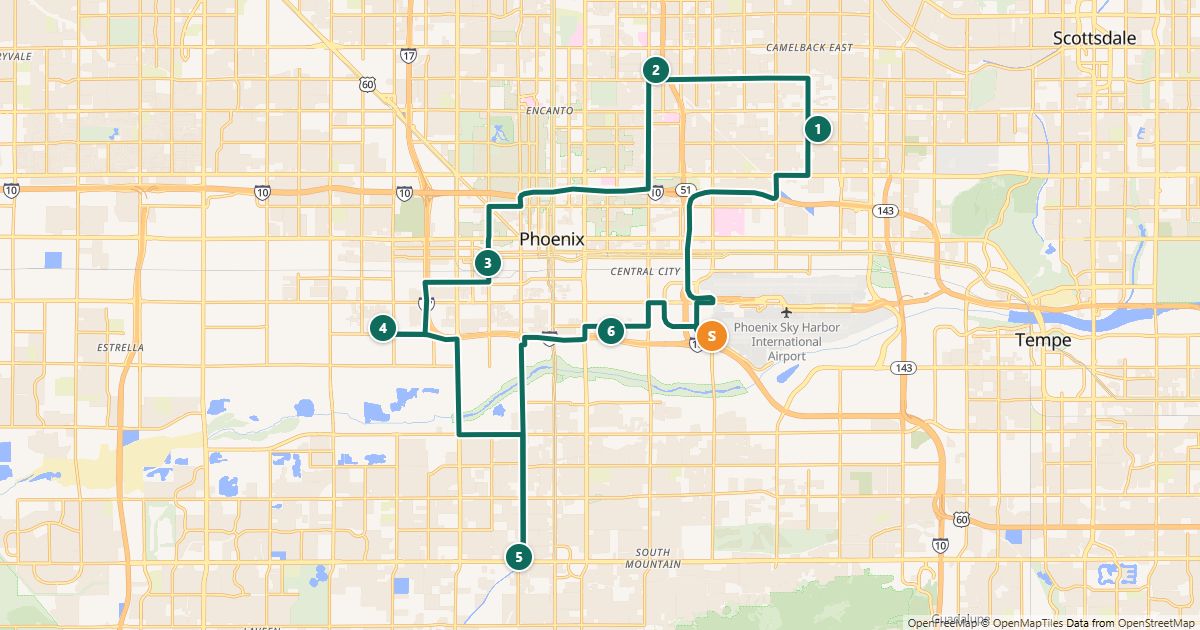
Split first, then optimize
The basic rule: stops that are close together belong on the same route. That is exactly how the planner splits: under "Split into several routes" you choose 2 to 5 routes and it forms areas of equal size around the start – each route is then optimized and saved on its own.
If each vehicle has a limit, such as 40 parcels or 1,000 lbs, enter it as "Capacity per route". The planner then counts the quantity of each stop instead of the number of stops and keeps every route within the capacity. For the number of routes you can choose "as few as possible".
- Add all stops to the planner (paste a list or import a spreadsheet) and set the start, such as your warehouse.
- Optional: enter a quantity per stop (✎ Edit, or a "Quantity" column in the spreadsheet). Stops without a quantity count as 1.
- Open "Split into several routes", choose the number, enter a capacity per route if needed and click "Preview on the map". Each route has its own color; with a capacity, the quantity per route is shown next to it.
- If the split looks right, click "Optimize and save routes". You will find them under "My routes", e.g. "Tuesday · Route 1".
- Create a driver link for each route and send it to the person driving it.
Rules of thumb for fair routes
- Compare more than the number of stops: drive time plus time at each stop. 15 stops downtown can take less time than 8 in the countryside.
- Balance routes using the drive time the planner shows, moving edge stops to the shorter route.
- If the areas stay the same every week, save yourself the work: save once, reuse every week.
Free for routes with up to 25 stops, nothing to install.
Plan a route nowQuestions
- Can RouteTidy split routes across several vehicles automatically?
- Yes, into 2 to 5 areas: with the same number of stops per route, or by capacity – a quantity per stop and at most so much per route. If the quantity does not fit into the chosen number of routes, the planner tells you how many you need. The split does not consider shift length or vehicles of different sizes – balance routes using the drive time shown if needed.
- What counts as a quantity?
- Whatever you like: parcels, boxes, pounds or pallets. What matters is that quantity and capacity use the same unit. Without quantities, every stop counts as 1 – then the capacity is the maximum number of stops per route.
- Is the stop limit per route or in total?
- Per route. Free routes can have up to 25 stops, up to 200 with a day pass or Pro.
More guides
- How to use Google Maps with more than 10 stops
- Import an address list from Excel or CSV
- Share a route with your drivers
- The best stop order: round trip, fixed destination or open end
- How much time does an optimized route save?
- Calculate the mileage cost of a route
- Clean up addresses for route planning
- Paste addresses from an email or document
- Drive your route with Apple Maps or Waze
- Customer addresses and privacy
- Plan your daily route faster
- Google Maps vs. a route planner: when to use which
- Free route planner for many stops: the checklist
- Route planner without an app
- Plan a route with multiple stops
- Plan routes by bike or on foot
- Breaks in route planning