Share a route with your drivers
Last reviewed: November 15, 2026
The best stop order only helps if it reaches the driver. RouteTidy offers four ways to get it there – from a link for the phone to a list on paper.
Try it now: free up to 25 stops, no sign-up →
Driver link: the route in the browser
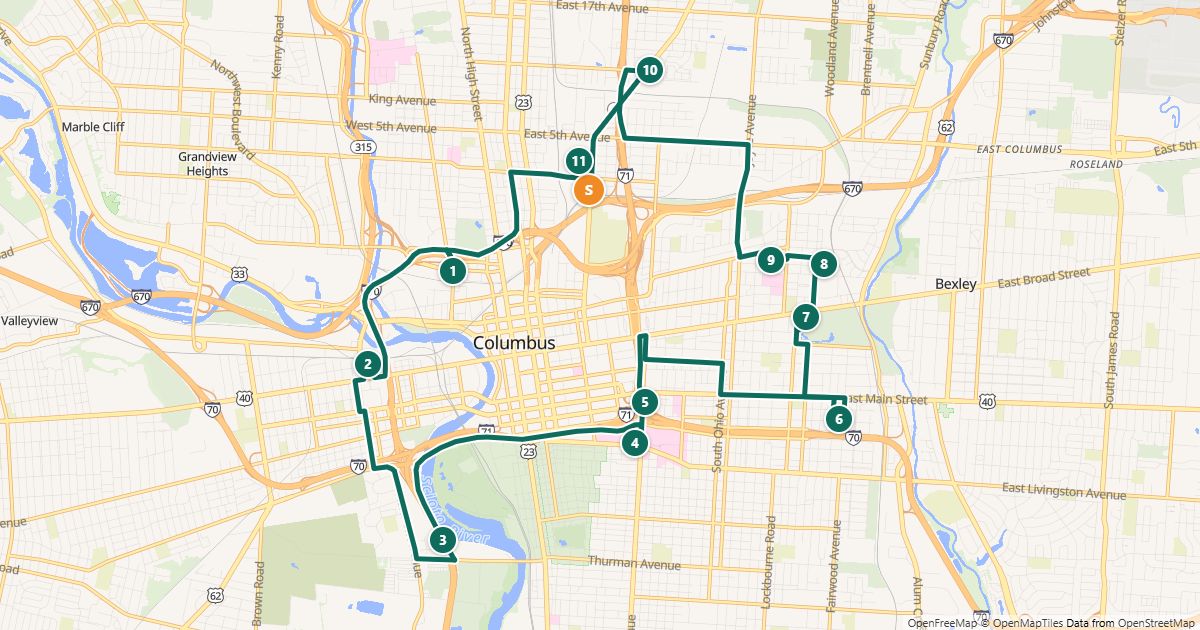
Your driver opens the link on a phone – no account, no app. They see all stops in order with names and notes, the map, and buttons at every stop to navigate with Google Maps, Apple Maps or Waze. They check off completed stops and report problems like “nobody home” with one tap; you see both in the planner.
- Save the route in the planner (you need a free account for this).
- Under “Share → Driver link”, choose how long it stays valid: 1, 7 or 30 days.
- Create the link, copy it and send it to your driver by text message or email.
Share safely
- Anyone who has the link can see the route until it expires. Send it only to your drivers and choose a short validity.
- The link is shown only when you create it. A new link replaces the old one; you can revoke it at any time.
- Drivers see your notes. Write only what they need for the drive – such as the doorbell or gate code – and no medical or contract details.
- If you change the route, your driver sees the changes the next time they open the link after you save.
Add stops on the road
If a job comes in during the route, open the route in the planner – at your desk or on your phone – and add the stop as usual. Once the driver has checked off stops, "Re-optimize the rest of the route" appears: stops already done stay at the top, the open ones are re-sorted from the last stop done, and the route is saved.
Your driver sees the new order as soon as they open their link again, for example when they come back from the navigation app. Their check marks and reports are kept. Arrival times still count from the planned departure.
Signature as proof of delivery
With the Day Pass or Pro, every stop in the driver link has a "Signature" button. The customer signs with a finger on the driver’s phone; the stop is then marked done. In the planner, "Share → Signatures" shows all signatures of the route with date and time; you can print them, save them as PDF and delete them one by one.
Only the signature (as lines, not as a photo) and the date and time are stored – no name, no location, no device data. The data is kept in our database in Germany (Hetzner). We delete it automatically after 90 days, and immediately with the route.
Notify customers automatically
Under "Notify customers" you create arrival links for the day of the route: each customer sees only their own stop and an estimated time range. With the Day Pass or Pro, RouteTidy can email these links automatically – to every stop for which you entered an email address (in the edit dialog, in the address book or as an "Email" column when importing).
The email goes out on the day of the route one hour before the planned departure, with your business as the sender and your email address for replies. If the arrival then shifts by at least 30 minutes, for example because you re-optimize the rest of the route, at most one more email is sent. Stops marked done get no email. Every email has an unsubscribe link; anyone who unsubscribes gets no more arrival emails from your business. Drivers never see the email addresses.
Other options
- Google Maps: the route opens in parts of at most 10 points – matching the Google Maps limit.
- CSV: a list with order, name, address, note, coordinates and legs, e.g. for your records or other software.
- Print or save as PDF: a route sheet with boxes to check off – handy for drivers without a smartphone.
Free for routes with up to 25 stops, nothing to install.
Plan a route nowQuestions
- Does my driver need an account?
- No. The driver link works without signing in in any current browser.
- What happens when it expires?
- The link then only shows a notice. Expired links are deleted automatically.
- How long are signatures stored?
- 90 days after signing; then we delete them automatically. If you delete the route or the single signature, it is gone immediately. If you need it longer, save it as PDF first.
- Are there text message (SMS) notifications?
- No. Automatic arrival notices are sent by email; you can also pass on the arrival links yourself by text message or messenger.
- Can I plan several drivers at once?
- Yes: "Split into several routes" turns one list into 2 to 5 routes, each with its own driver link – optionally by capacity (a quantity per stop, at most so much per route). A joint optimization of several vehicles or shift limits is not available.
More guides
- How to use Google Maps with more than 10 stops
- Import an address list from Excel or CSV
- The best stop order: round trip, fixed destination or open end
- How much time does an optimized route save?
- Calculate the mileage cost of a route
- Clean up addresses for route planning
- Paste addresses from an email or document
- Drive your route with Apple Maps or Waze
- Split stops across several drivers or days
- Customer addresses and privacy
- Plan your daily route faster
- Google Maps vs. a route planner: when to use which
- Free route planner for many stops: the checklist
- Route planner without an app
- Plan a route with multiple stops
- Plan routes by bike or on foot
- Breaks in route planning